Troubleshooting guide
Windows 11 Bluetooth Headset Connected but Silent: Verify Output Device and Mic
Category: Audio Devices
Your Windows 11 PC says the Bluetooth headset is connected, yet the earpieces stay silent. That usually means the audio is going to the wrong endpoint or the headset’s output profile is not active. Here is a focused way to check the output and mic before you change anything else.
Confirm the active output endpoint
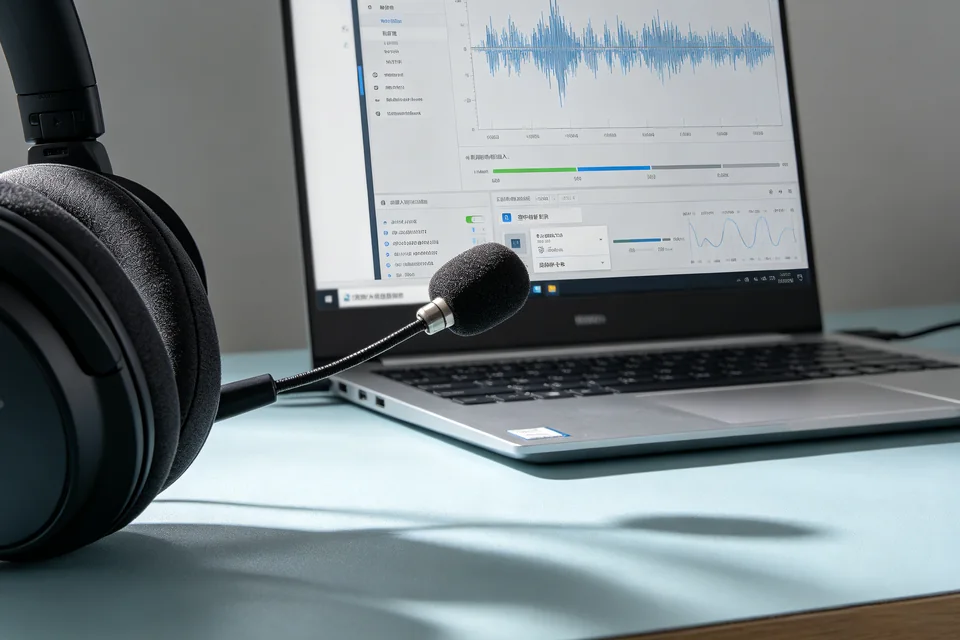
Open Settings > System > Sound. Under Output, select your Bluetooth headset by name, not “Speakers” or a monitor. Play a short system sound. If the volume meter beside the device moves but you hear nothing, the endpoint is receiving audio; raise the headset volume and check for a mute switch. If the meter stays flat, Windows is still routing elsewhere. Click the device and set it as default.
Check the microphone side
Still in Sound, open Input and choose the headset microphone. Speak normally and watch the input meter. A moving bar means the mic is live; a flat bar means the headset’s mic profile is not selected or is muted in the headset app. This matters because some headsets expose separate stereo output and hands-free mic endpoints, and Windows can pick the wrong pair.
Run a verification test
Use Settings > System > Sound > More sound settings, open the Playback tab, select the headset, and click Test. You should hear a tone in both ears. Then return to Input and use the test meter while speaking. If the tone plays but calls stay silent, the communication device default is wrong; set the headset as both default device and default communication device.
Rollback and recovery
If you changed defaults and sound got worse, reopen Sound settings and restore the previous default output, then reconnect the headset. For persistent silence after these checks,
Ask for help with your device names and what the meters showed.
A quick note on the Windows Bluetooth Headset Connected but No Sound: Check Output and Mic path: always verify the endpoint before reinstalling drivers.